
How to build a trackside light switch in Roblox Studio
Light a dark corner of a practice track with a player-operated lamp. This walkthrough covers placement, installation, and a two-player visibility check.
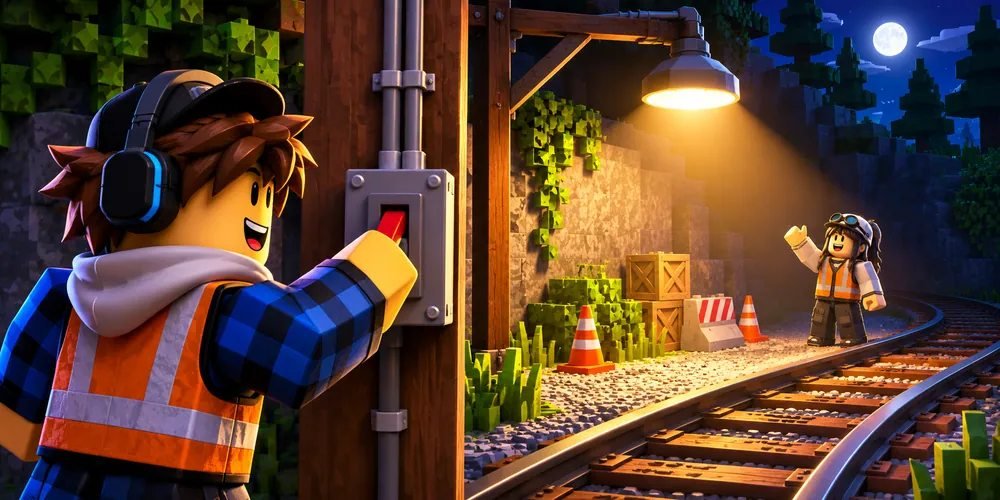
Place the marker beside the driving line
Put an anchored Part just outside the path of the vehicle. Leave space for a player to approach on foot without standing in traffic. Stand at the entrance to a bend and compare the road with the lamp on and off. Increase Range if the lamp lights the verge but the turn itself is still dark.
Install the interaction
Open Trackside Light Switch from the link below. Expand the Luau source and copy it into a server Script directly under your Part. Start a play session so the Script can create its prompt. Use a fresh Part for the first test to avoid overlapping prompts.
Test from a second player’s viewpoint
The first interaction switches on a PointLight. The prompt then reads “Turn off” so the next driver can reverse the change. Have one player operate the prompt while another watches from the far side of the turn. Then swap places. If neither sees a prompt, check the Script’s parent and move within activation distance.
Open Trackside Light Switch and view the Luau source
Questions and answers
Can another player see the change?
Yes. The Script changes an object in Workspace on the server, so the effect is shared.
How should I position the Part?
Stand at the entrance to a bend and compare the road with the lamp on and off. Increase Range if the lamp lights the verge but the turn itself is still dark.